
Your own rooms
You can own up to 25 rooms in the Inn, whichever penguin you wear. Your igloo doesn’t count. Make a cozy den for yourself, a café for your friends or a party floe for the whole inn. This chapter covers creating rooms, changing their settings and deciding who may help you build.
Creating a room
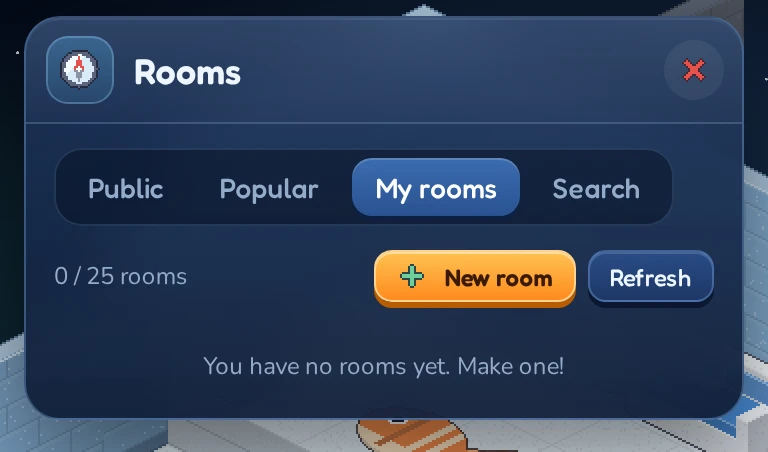
- Click
 Rooms in the toolbar and open the My rooms tab. It shows how many rooms you have, for example 0 / 25 rooms.
 - Click
 New room.
 - Fill in the New room window (see below) and click Create room.
The inn announces that your room is ready and takes you straight inside.
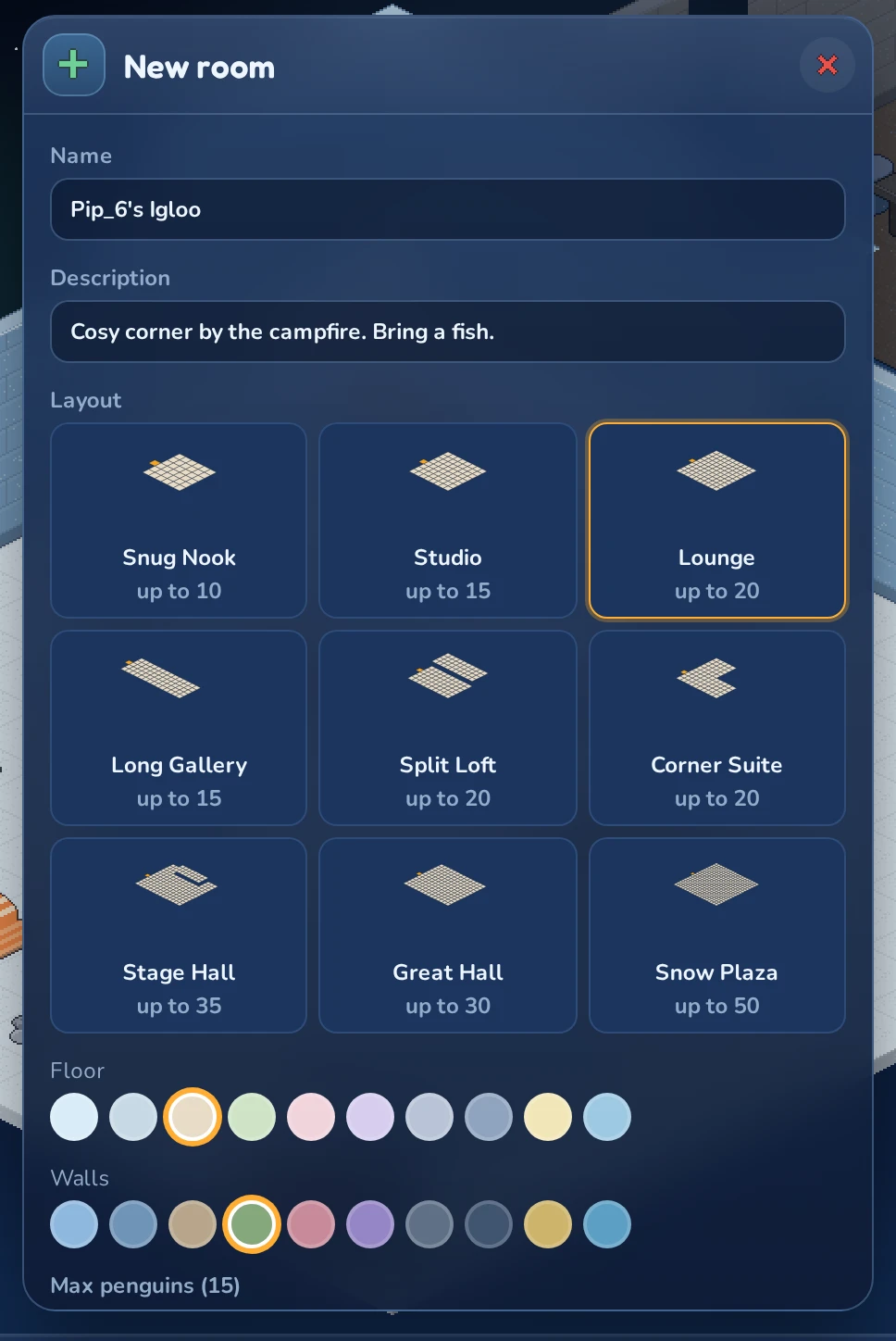
Name and description
- Name: 3 to 30 characters. This is what other penguins see in the Navigator.
- Description: optional, up to 120 characters. Tell visitors what your room is about.
Layout
The layout decides the shape and size of the room. Each one is drawn as a small floor plan, with the door marked in orange, and shows how many penguins fit at most:
| Layout | Size | Penguins |
|---|---|---|
| Snug Nook | small square | up to 10 |
| Studio | medium square | up to 15 |
| Lounge | large square | up to 20 |
| Long Gallery | long and narrow | up to 15 |
| Split Loft | two levels | up to 20 |
| Corner Suite | L-shaped | up to 20 |
| Stage Hall | big hall with a raised stage | up to 35 |
| Great Hall | big square | up to 30 |
| Snow Plaza | huge open square | up to 50 |
| Aurora Terrace | three broad terraces up to a balcony | up to 35 |
| Moonlit Rotunda | round hall with a raised dance floor | up to 40 |
The Aurora Terrace and the Moonlit Rotunda are for LUNC Penguin holders: they show greyed out with a Holder badge unless you wear one. See What NFT holders get.
Colors and size limit
- Floor and Walls: pick a color for each. The layout previews show your floor color as you choose.
- Max penguins: drag the slider to limit how many penguins may be in the room at once. It can’t go above the layout’s limit.
Room settings
You can change your room at any time. Open the settings in either of these ways:
- While you’re in the room, click
 Settings on the room card in the top-left corner.
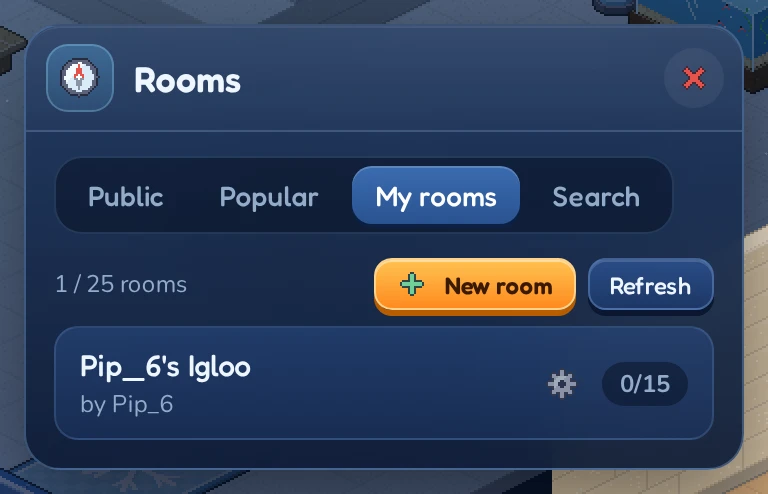
 - In the Navigator, open My rooms and click next to the room.
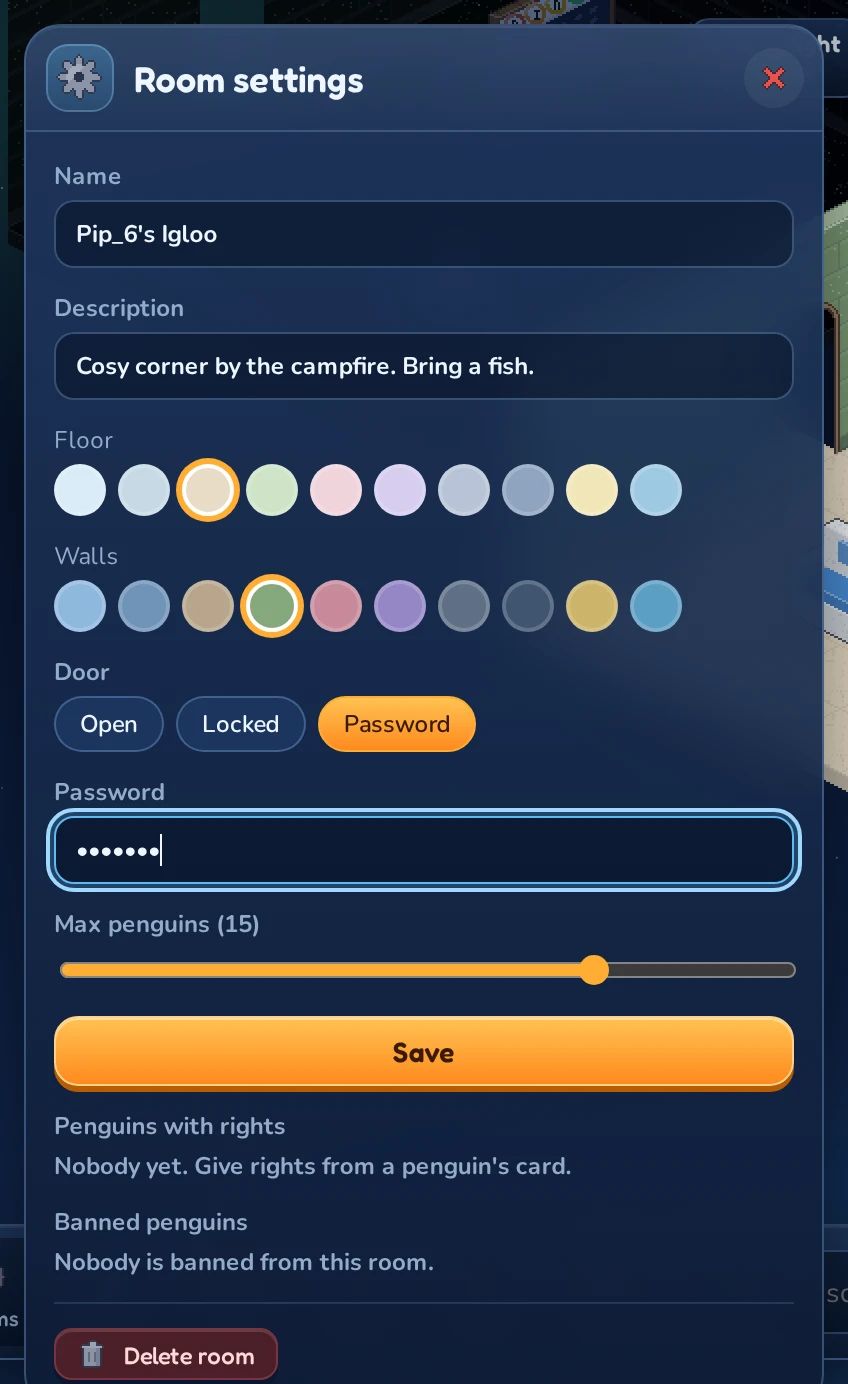
The Room settings window lets you change:
| Setting | What it does |
|---|---|
| Name and Description | As when creating the room. |
| Floor and Walls | New colors appear for everyone in the room right away. |
| Door | Open, Locked or Password. See below. |
| Password | Appears when the door is set to Password. 3 to 32 characters. |
| Ambience | Ghost wisps or Aurora snowfall drifting along the walls, for everyone in the room, or None. Switching one on is a LUNC Penguin holder perk; you can always switch it off again. |
| Max penguins | The most penguins allowed in at once. |
Click Save to apply your changes.
Who can come in
The Door setting controls who may enter:
- Open: every penguin can come in.
- Locked: only you and penguins with rights can come in. Penguins already inside can stay.
- Password: penguins must type the password to enter. You and penguins with rights get in without it.
When your room already has a password, the field says New password (leave empty to keep). Leave it empty to keep the old password or type a new one to change it.
Rights: building together
You can let other penguins help decorate your room by giving them rights.
Giving and removing rights
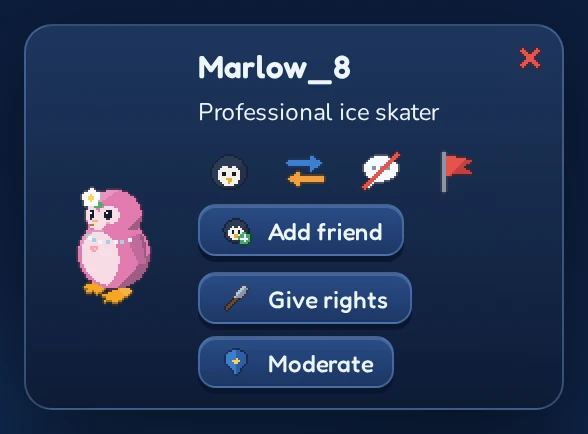
- Make sure the penguin is in your room with you.
- Click on them to open their card.
- Click
 Give rights.
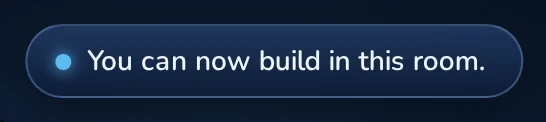
They get a message saying You can now build in this room.
To take rights away again, open their card and click Remove rights, or open Room settings and click Remove next to their name under Penguins with rights. Removing rights from the settings window only works while you’re in that room.
What penguins with rights can do
| Owner | With rights | Visitors | |
|---|---|---|---|
| Enter when the room is locked or has a password | ✓ | ✓ | |
| Place their own furni | ✓ | ✓ | |
| Move, turn and use furni | ✓ | ✓ | |
| Pick up their own furni | ✓ | ✓ | |
| Pick up other players’ furni | ✓ | ||
| Change room settings and rights | ✓ |
Furni always belongs to whoever placed it. Picking up your own furni puts it back in your inventory, if you have room to carry it; furni the owner picks up for someone else goes into that penguin’s cabinet.
Deleting a room
- Open Room settings for the room.
- Click
 Delete room at the bottom.
 - The window asks Delete “room name”? Furni goes back to its owners. Click Delete forever to confirm, or Cancel.