

Friends and messages
Met someone nice in the lobby? Add them as a friend. Friends can see when you’re online and where you are, follow you into rooms and send you private messages, even when you’re away.
Adding a friend
There are two ways to send a friend request:
- In a room: click the penguin to open their card, then click
 Add friend. The card now says Friend request sent.
 - By name: click
 Friends in the toolbar, open the Requests tab, type their penguin name into Add a friend by name and press Enter or click .
The other penguin gets a message saying that you want to be their friend, and a number appears on their Friends button.

Answering requests
Click Friends and open the Requests tab. Requests to you say wants to be friends:
- click
 Accept to become friends, or
 - click
 Decline to say no thanks.
Requests you’ve sent show request sent. Click  to withdraw one.
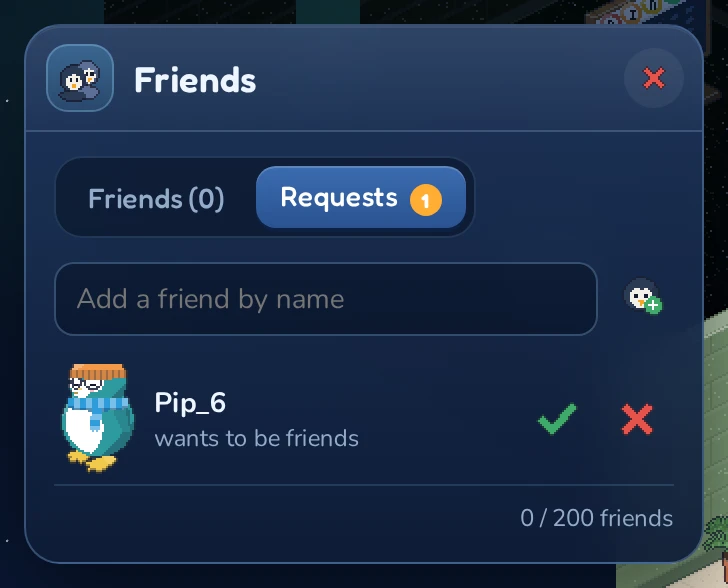
You can also accept a request from the penguin’s card or profile with Accept friend request.
Your friends list
The Friends tab lists all your friends, online friends first. Under each name you can see where they are:
| Status | Meaning |
|---|---|
| offline | Not at the inn right now. |
| online | At the inn, but not in a room. |
| in Krill Café | In that room. |
| here in Krill Café | In the same room as you. |
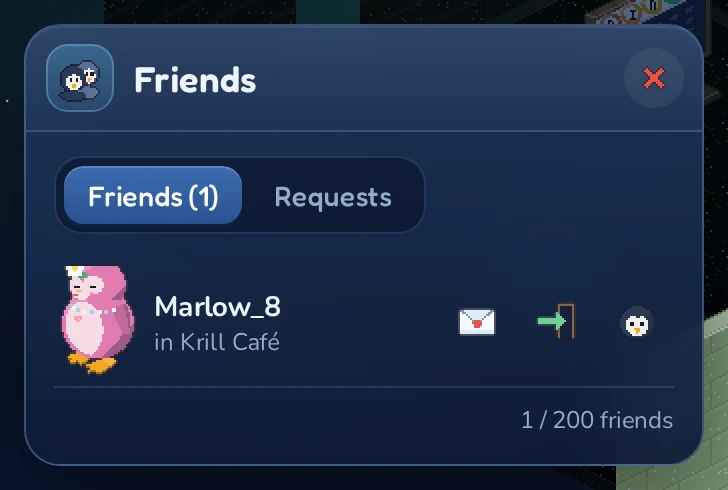
Each friend has up to three buttons:
| Button | What it does |
|---|---|
 Message Message |
Opens the Messenger with this friend. |
 Follow Follow |
Takes you to the room they’re in. Only shown when they’re in a different room. |
 Profile Profile |
Opens their profile. |
You can have up to 200 friends, counting requests you’ve sent. The bottom of the window shows how many you have, for example 3 / 200 friends.
Following a friend
Click Follow next to a friend who’s in a room, and you walk right in through the door. The normal door rules still apply: if the room is locked you can’t follow, and if it has a password you’re asked for it. Igloos, and the Inn’s rooms while you’re on Moon Isle, can’t be jumped into: a marker shows you the way instead.
Removing a friend
Open the friend’s card or profile and click Remove friend. You both disappear from each other’s friends lists and from each other’s Messenger.
The Messenger
The Messenger is for private conversations with your friends, wherever they are in the inn. Only the two of you can read them.
- Click Messenger in the toolbar (or next to a friend in your friends list).
- Pick a friend on the left. A green dot shows who’s online.
- Type your message at the bottom and press Enter or click Send.
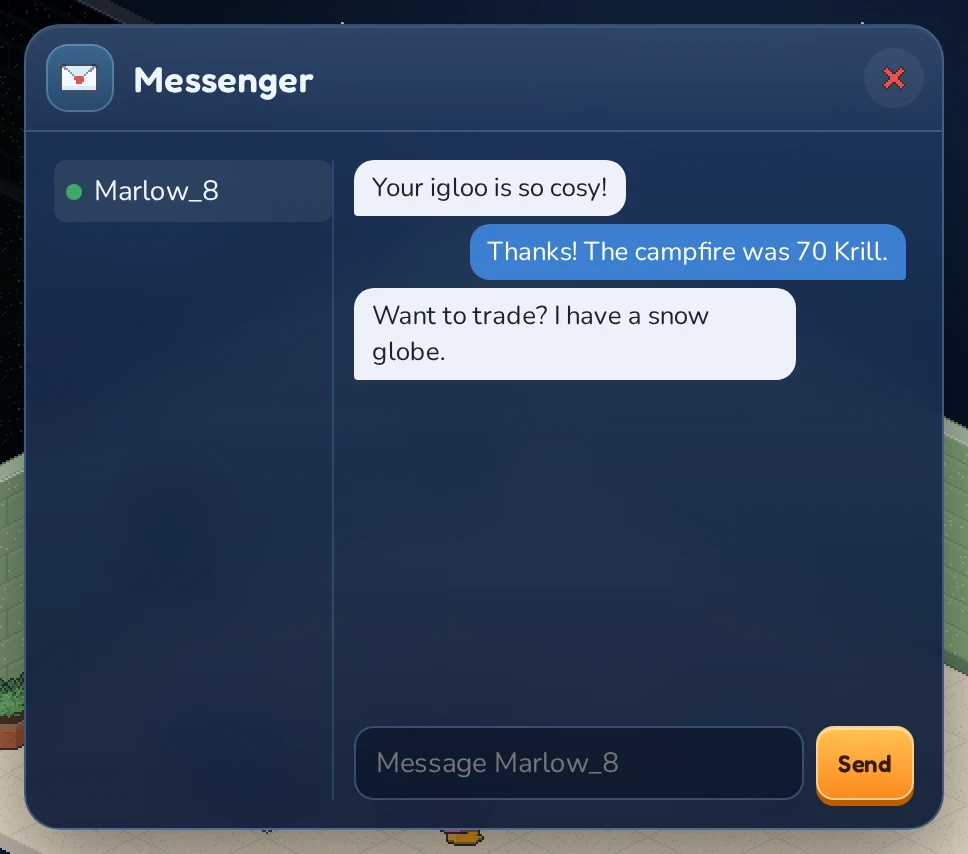
Messages can be up to 200 characters long. The Messenger keeps your recent conversation with each friend, so you can scroll back and read what was said.
When a message arrives, a note pops up with the sender’s name and the message. Friends with unread messages are marked new, and the number on the Messenger button tells you how many conversations are waiting.
Messages for friends who are offline
You can message a friend even when they aren’t at the inn. The text box then says (name) is offline; they get it later. Your message is kept for them, and the next time they come in they see that you left them a message.
Profiles and badges
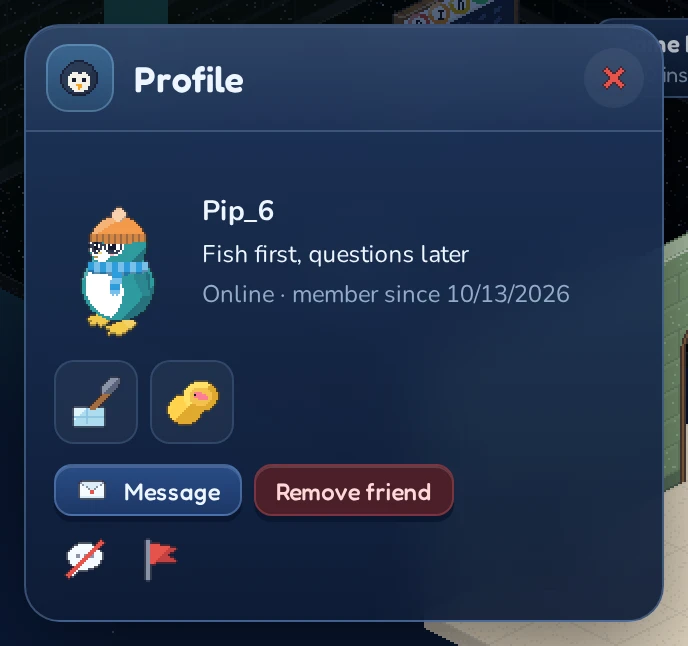
A profile shows a penguin’s look, name and motto, whether they’re online, and how long they’ve been at the inn (“member since”). To open one, click on a penguin’s card or next to a friend in your friends list. Other penguins’ profiles also have the  Ignore and
  Report buttons (see Staying safe).
Badges
Badges are earned automatically for things you do at the inn. Hold your mouse over a badge to see what it’s for.
| Badge | Name | Earned for |
|---|---|---|
 |
Veteran | 30 days at the inn |
 |
Builder | Owning a room |
 |
Social | Having 5 or more friends |
 |
Trader | Completing a trade |
 |
Angler | Landing a rare fish (see Ice fishing) |
 |
Champion | Winning against other penguins: a snowball fight, belly-slide race or quiz question in a public room, bowling or snooker anywhere, or the river race |
Penguins with a linked wallet also show that wallet family’s emblem:  Terra Classic,
  EVM or
  Solana.