
Getting started
This chapter takes you from the front door to your first steps inside: signing in, hatching your penguin and learning what all the buttons on the screen do.
Opening the inn
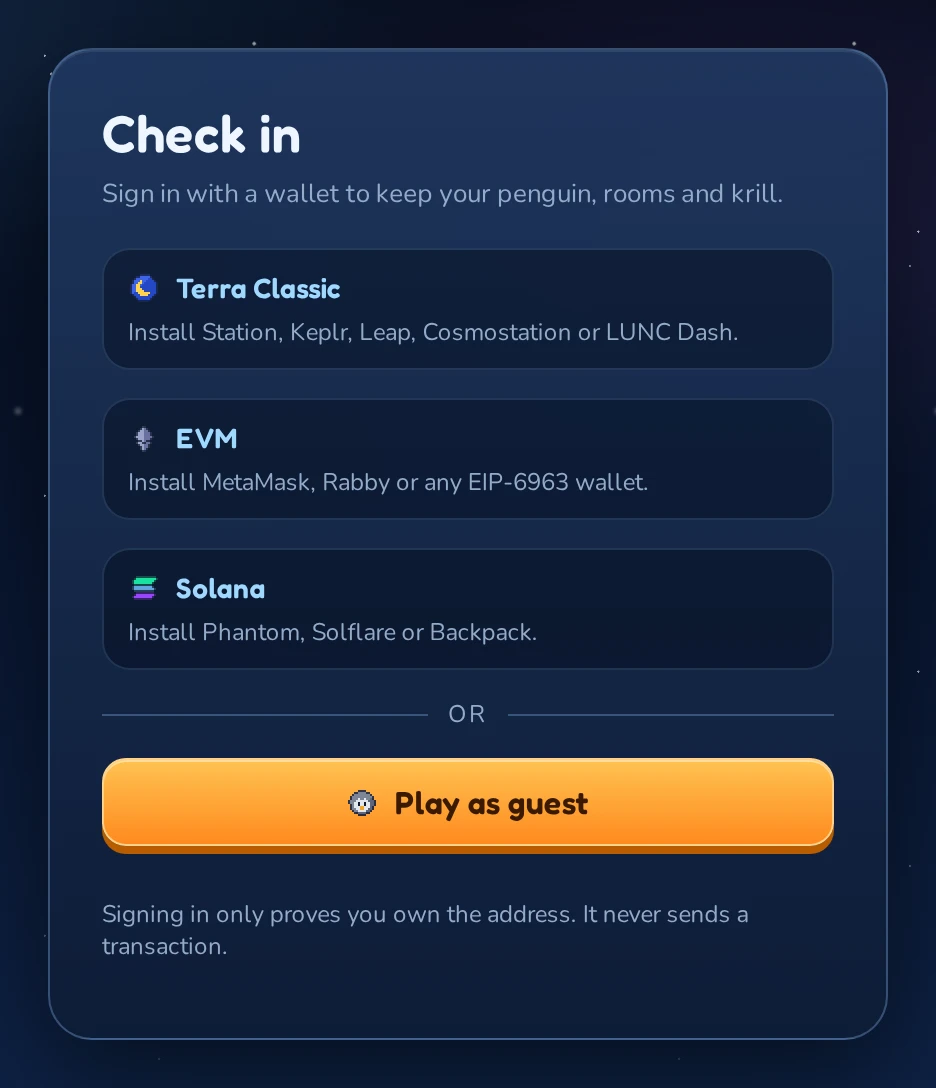
Open the Waddle Inn address in your browser. The first thing you see is the sign-in screen with the Waddle Inn logo and one section for each kind of wallet the inn understands.
Signing in
There are three ways in: with a crypto wallet, with your Google account, or as a guest.
With a wallet
Waddle Inn works with three families of wallets:
| Section | Wallets that work |
|---|---|
 Terra Classic Terra Classic |
Station, Keplr, Leap, Cosmostation, LUNC Dash |
 EVM EVM |
MetaMask, Rabby or any wallet that supports EIP-6963 |
 Solana Solana |
Phantom, Solflare, Backpack |
- Install the wallet extension in your browser, if you haven’t already, and unlock it.
- Open the inn (or reload the page). While it looks around, each section says Looking for wallets…, then lists a button for every wallet it found. If a section shows a hint such as Install Phantom, Solflare or Backpack. instead, no wallet of that kind was found.
- Click your wallet’s button. It changes to Check your wallet….
- Your wallet pops up and asks you to sign a message. Read it and approve it.
Using a Terra Classic phone wallet such as LUNCDash or Station Mobile? Switch the sign-in card from Browser extension to WalletConnect, pick your wallet, scan the QR code with the app (on a phone the app opens by itself) and approve there.
That’s it: you’re in. The next time you sign in with the same wallet address, you come back as the same penguin, with all your Krill, furni, rooms and friends. Later you can link more wallets to the same penguin and sign in with any of them; see Wallets and NFTs.
If you change your mind and reject the request in your wallet, the sign-in screen shows Signature request was cancelled. and you can simply try again. If your account has been banned, the sign-in screen says so instead; see If your account is banned.
With Google
No crypto wallet? Click Sign in with Google under the wallet sections. Google asks you to pick your account and confirms that you want to sign in to Waddle Inn, then sends you back to the inn, signed in. The next time you click Sign in with Google with the same Google account, you come back as the same penguin, from any browser.
Waddle Inn only learns an account number from Google: not your name, e-mail address or anything else. A Google penguin keeps its progress just like a wallet penguin. Wearing a LUNC Penguin and claiming NFT furni need a wallet, which you can link at any time in  Wallets & NFTs; afterwards you can sign in with Google or with the wallet, and both bring you to the same penguin. See Wallets and NFTs.
If you close Google’s page or say no, the sign-in screen shows Google sign-in was cancelled. and you can try again.
As a guest
If the inn allows guests, there is a Play as guest button at the bottom of the sign-in screen. Click it, read the warning, then click Explore as guest. No wallet needed.
Hatching your penguin
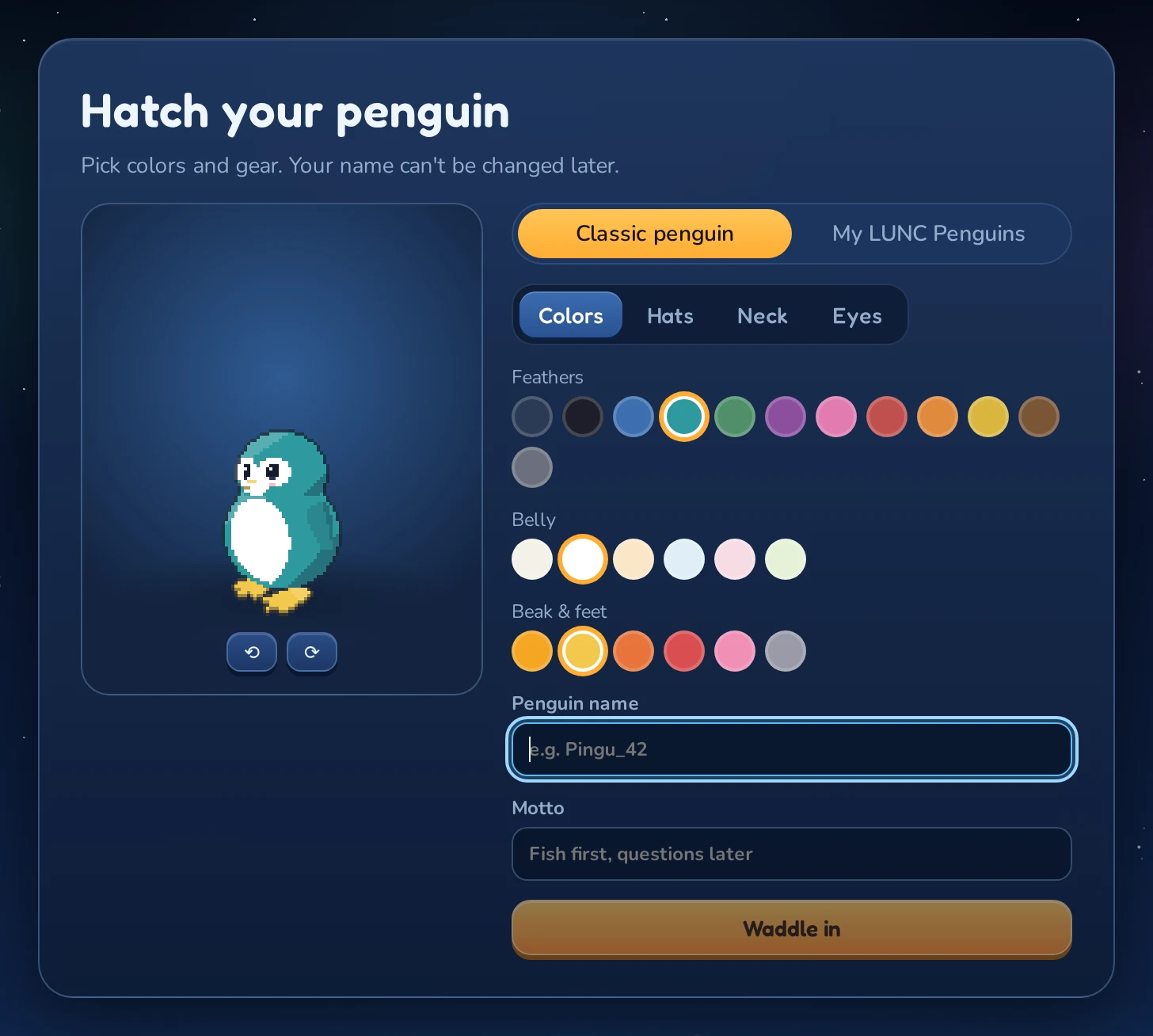
The first time you sign in, the inn asks you to create your penguin. The editor has a big preview on the left and the controls on the right.
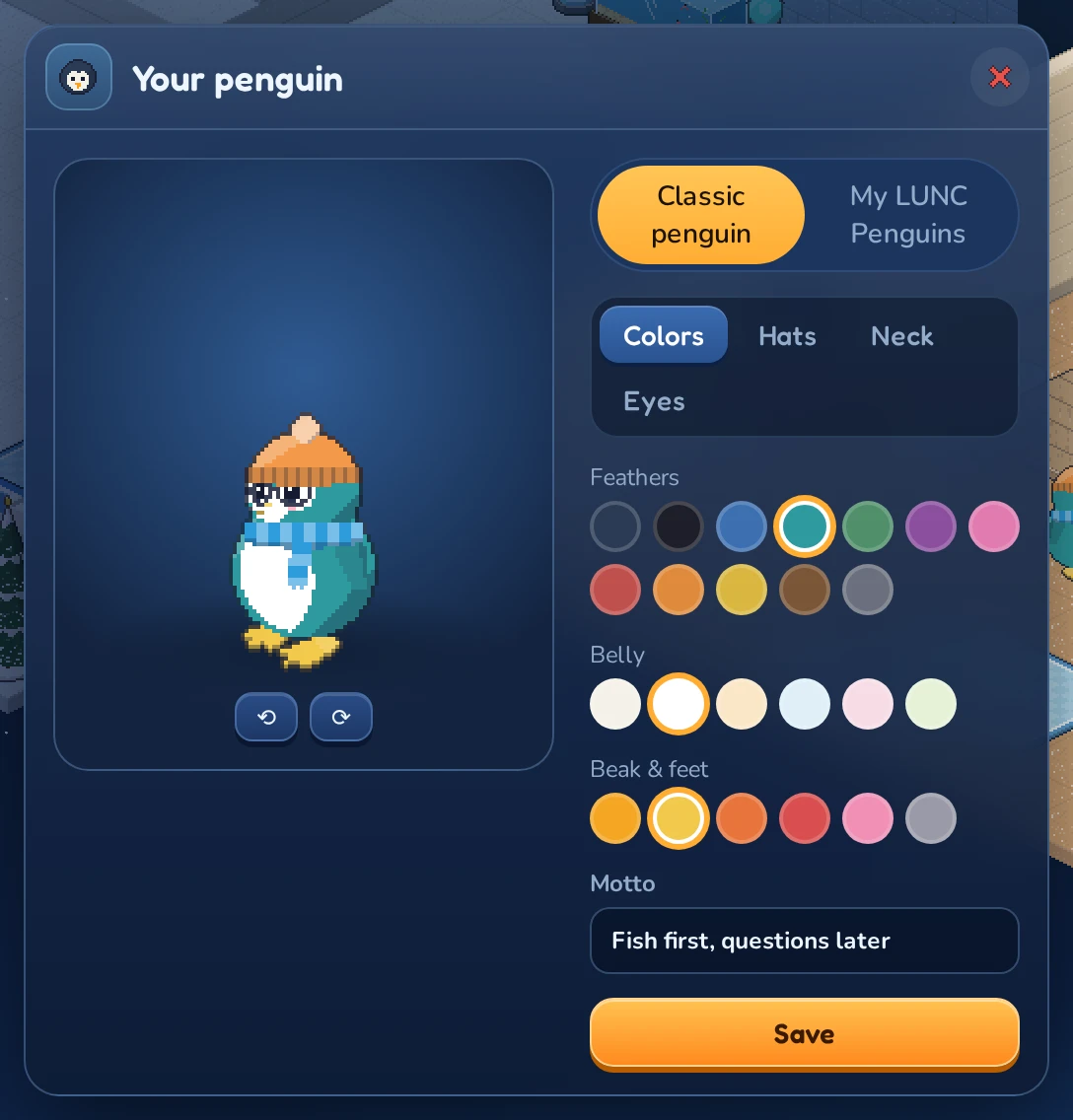
Colors
The Colors tab has three rows of swatches:
- Feathers: the color of your back, head and wings.
- Belly: your front.
- Beak & feet: your beak and your feet.
Click a swatch to try it. The preview updates at once. Use the ⟲ and ⟳ buttons under the preview to turn your penguin around and see it from every side.
Hats, neck and eyes
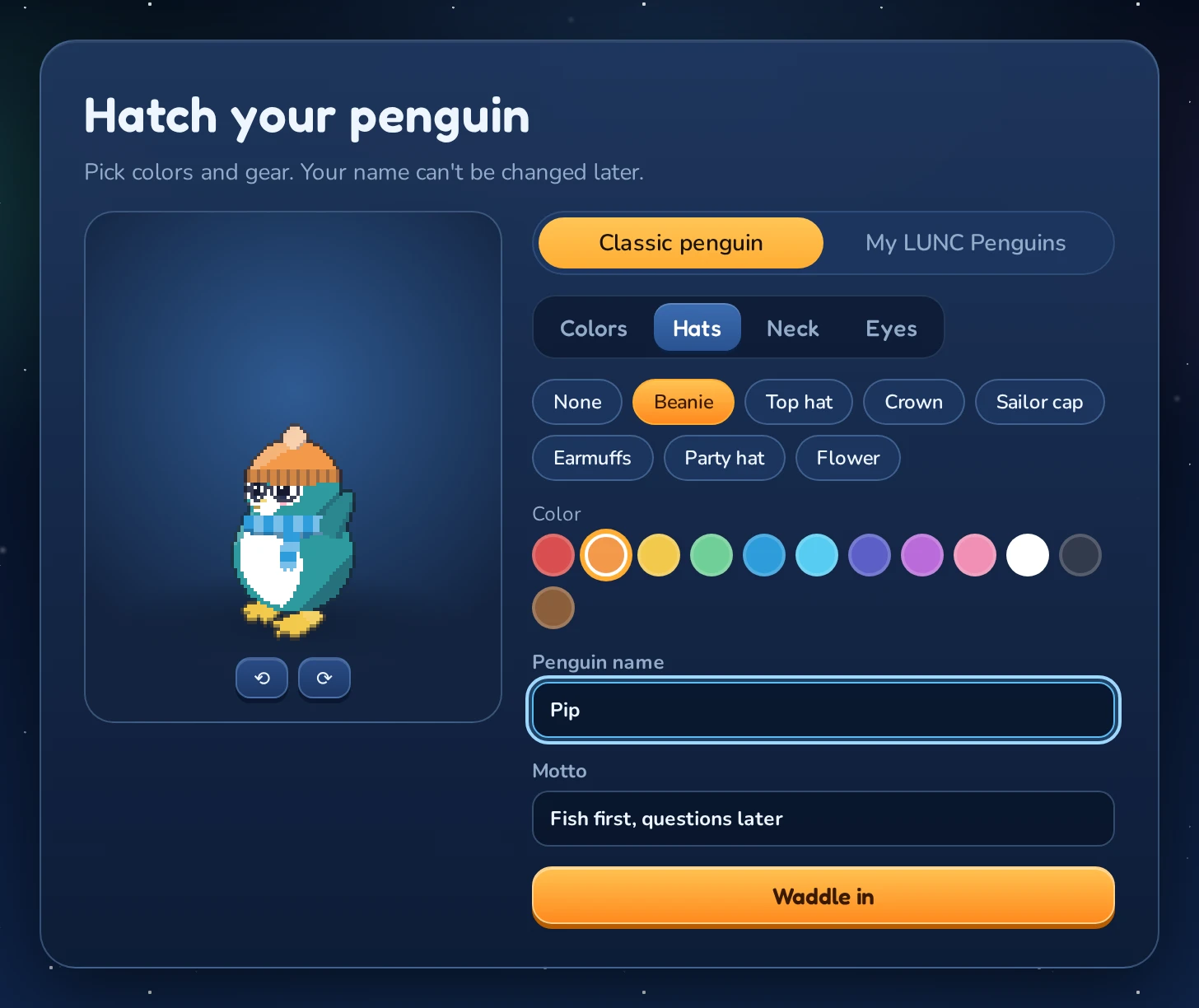
The other three tabs dress your penguin up. Click a chip to put an item on, or None to take it off again.
| Tab | Choices |
|---|---|
| Hats | Beanie, Top hat, Crown, Sailor cap, Earmuffs, Party hat, Flower, Chef hat, Headphones |
| Neck | Scarf, Bow tie, Shell necklace, Life ring |
| Eyes | Round glasses, Shades, Monocle, Snow goggles |
Many items come in several colors. When you pick one of them, a Color row appears underneath so you can choose its color.
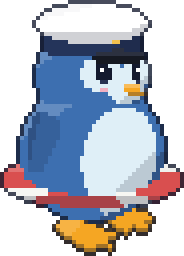 Sailor cap and life ring
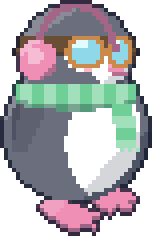 Earmuffs, scarf and snow goggles
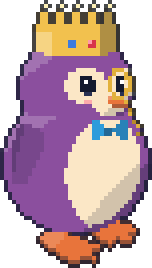 Crown, bow tie and monocle
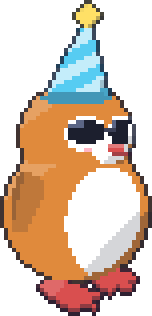 Party hat and shades
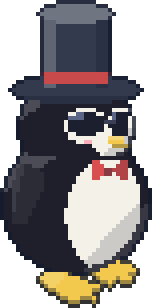 Top hat, bow tie and shades
Your LUNC Penguin
If the inn offers LUNC Penguins, the editor starts with two buttons: Classic penguin (the colors and items above) and My LUNC Penguins. Holders of a LUNC Penguin NFT can give their penguin the complete look of one they own. See Wearing a LUNC Penguin.
Name and motto
Below the tabs are two text fields:
- Penguin name: how everyone at the inn will know you. A name is 3 to 16 characters long and may use letters, digits and the characters
_,.and-. Every name can only be taken once. - Motto: a short line of up to 60 characters that others see when they click on you. You can leave it empty.
When you’re happy, click Waddle in. If someone already has that name, the editor tells you so and you can pick another one.
Outside the Inn
Every visit starts outside, in the snow in front of Waddle Inn, unless you left from Moon Isle: then you come back out there. Each of the Inn’s public rooms is a door or window in the big igloo: the main door leads to the Iceberg Lobby, and the windows to the other rooms. The Grand Exchange trades outside, at the market stall in the snow by the jetty. Stairs in the snow left of the path lead down to the Krill Bowl, the bowling cellar, and the kiosk under the ticker board right of the path is the Penguin Exchange. The stone gate right of the kiosk, under the sign Moon Isle (open world), leads out to the open world, where you fight, gather and level up; see Moon Isle. A window glows when penguins are inside. Point at a door or window to see the room’s name and how many penguins are in it, and click it to waddle in.
The small igloo on the right is the guest wing, where the player rooms are. Clicking it opens the Rooms window on the busiest player rooms.
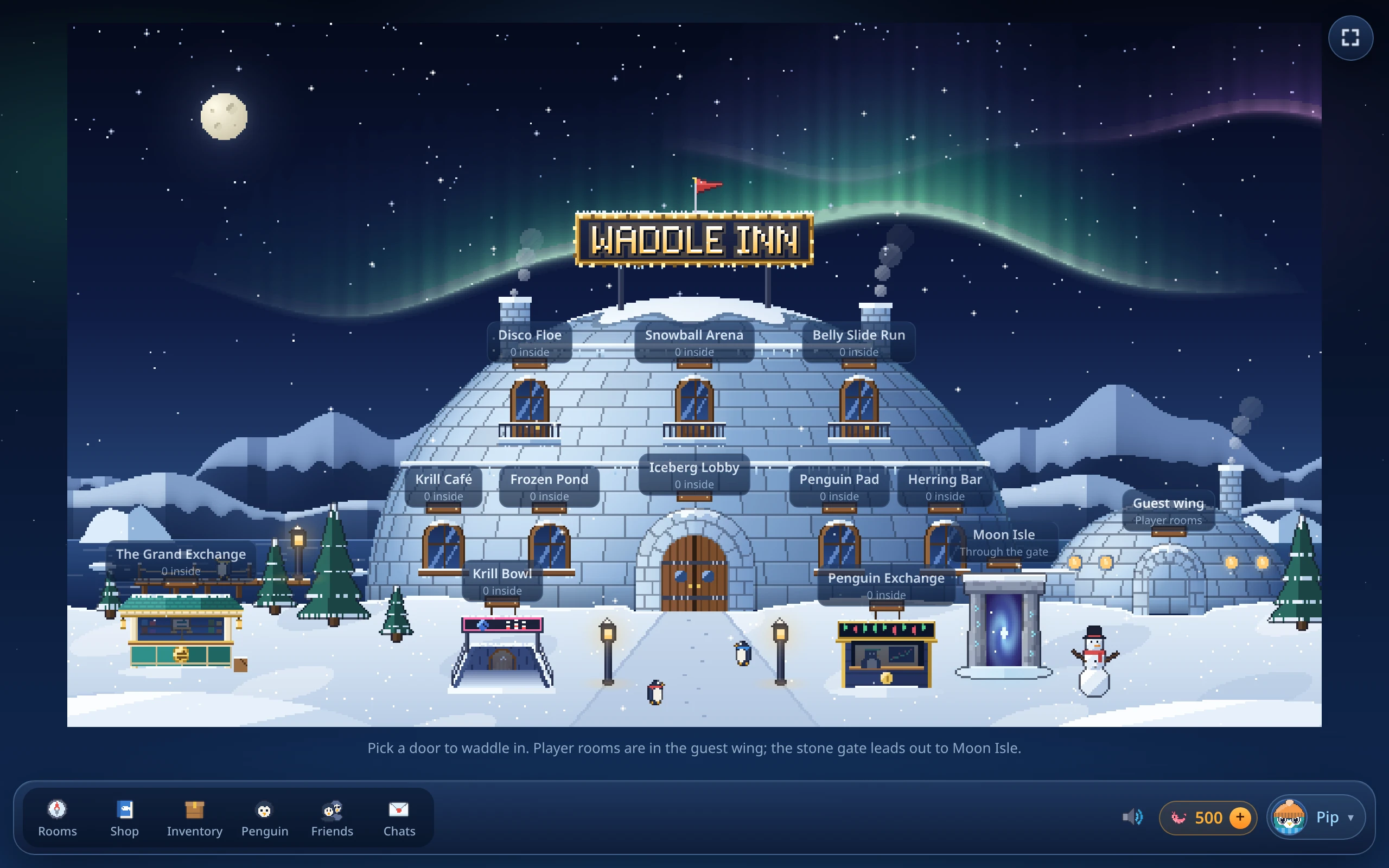
You can step back outside at any time with  Inn on the room card.
Your first look around
Most penguins start in the Iceberg Lobby, the inn’s main hall. Your penguin pops out of the door and you can start exploring straight away.
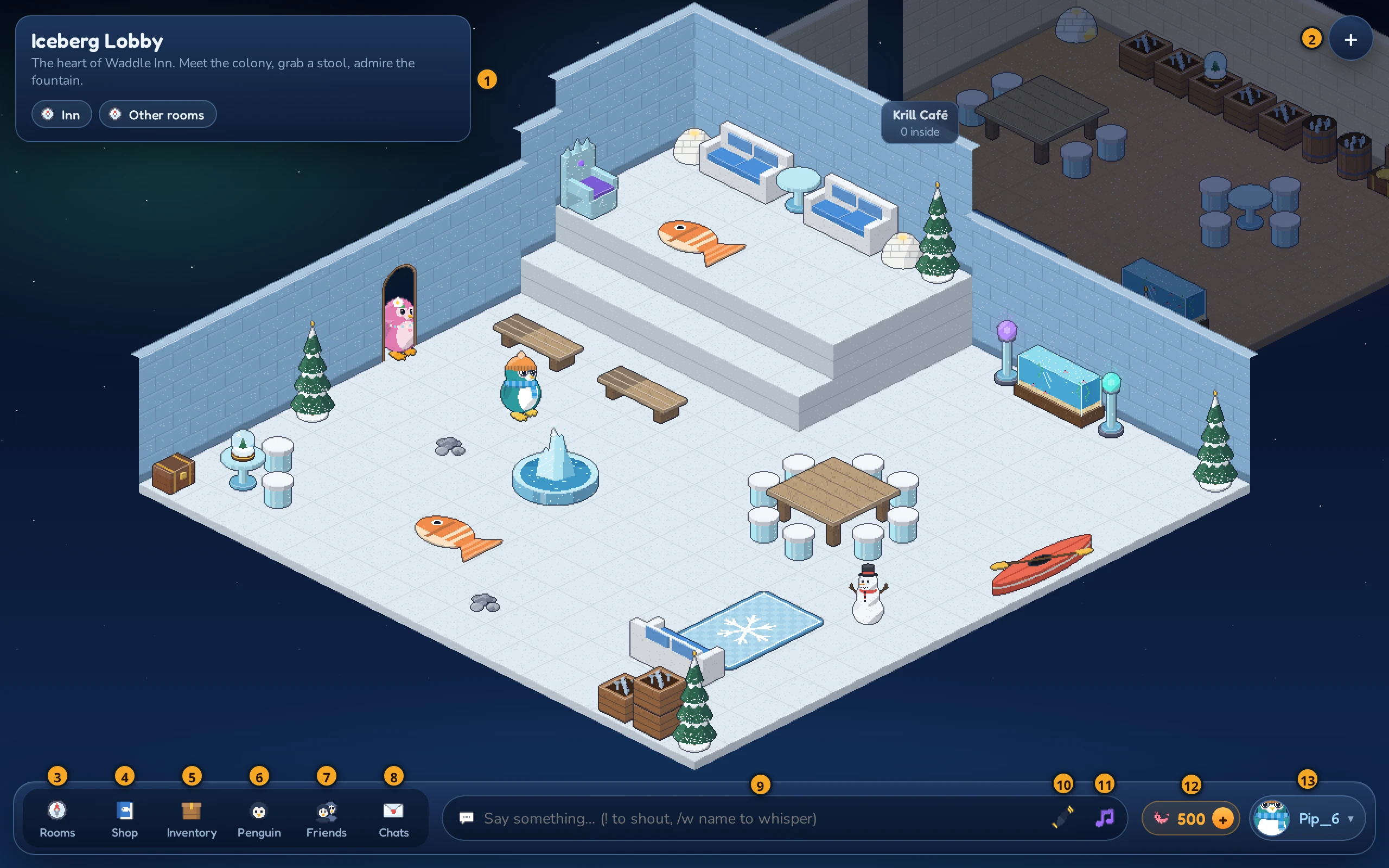
The big picture in the middle is the room. Click anywhere on the floor to walk there, and click another penguin to see who they are. Everything else lives along the edges:
On a phone the room card shows only the room’s name; tap  next to it for the description and the buttons. Outside the Inn, the picture is bigger than the screen there: swipe to look around.
| Part | What it does | |
|---|---|---|
| 1 | Room card | The room you’re in, plus its owner or a short description. Its buttons take you Inn (outside), back to the  Lobby, open Other rooms, and (in your own rooms) the room Lobby, open Other rooms, and (in your own rooms) the room  Settings. Settings. |
| 2 | + / − | Zooms between the normal view and a close-up. Below it,  switches fullscreen on and off. switches fullscreen on and off. |
| 3 | Rooms |
Opens the Rooms window to find and enter rooms. See Rooms and the Navigator. |
| 4 |  Shop Shop |
Buy furni with Krill. See The Shop and your inventory. |
| 5 |  Inventory Inventory |
What your penguin carries: furni that isn’t in a room or your cabinet, and your gear. |
| 6 |  Penguin Penguin |
Change your look and motto. |
| 7 |  Friends Friends |
Your friends list and friend requests. A number shows new requests. |
| 8 |  Chats Chats |
The Messenger: private messages with friends. A number shows unread conversations. |
| 9 | Chat box | Type here to talk. See Moving and chatting. |
| 10 |  Wave Wave |
Your penguin waves. |
| 11 |  Dance Dance |
Starts or stops dancing. |
| 12 |  Krill Krill |
How much Krill you have. See Krill. |
| 13 | Your penguin | Your name and face. Click it for your penguin menu: Wallets & NFTs (see Wallets and NFTs) and  Sign out. Your profile and look are in Penguin. Sign out. Your profile and look are in Penguin. |
Signed in with a wallet, the toolbar also has Igloo home, for your igloo on Moon Isle; see Igloo homes.
Sound and music
The inn has music: its theme tune outside, quieter tunes on the sign-in and hatchery screens and in rooms, and whatever the jukebox or DJ booth plays when one is on. Furni and games make sounds too. Browsers keep pages quiet until you click or press a key, so the music starts with your first click.
Click  Sound in the toolbar to turn sound off or set the music and effects volume. The inn remembers your choice in this browser.
Changing your look later
You can restyle your penguin at any time. Click Penguin in the toolbar to open the Your penguin window. It’s the same editor as before, without the name field. Make your changes and click Save. Everyone in the room sees your new look right away, and the inn tells you that you’re Looking sharp!
Signing out
Open your penguin menu (click your name at the right end of the toolbar) and click Sign out. Your penguin leaves the room and you’re back on the sign-in screen. Everything you own stays safe on your account (unless you’re a guest, see above).