

Staying safe
Waddle Inn is meant to be a friendly place. Most of the time it is, but when someone spoils the fun you have tools to deal with it: ignore them, report them, and, in your own rooms, kick, mute or ban them.
The word filter
The inn hides rude words in chat by itself. A blocked word is replaced by stars, one per letter, in every chat bubble, shout and whisper, so what the heck might arrive as what the ****. Ordinary words that just happen to contain a rude one, like Scunthorpe or cockpit, are left alone.

The filter is automatic and catches the obvious cases. For anything it misses, use Ignore and Report.
Ignoring a penguin
If a penguin annoys you, you can stop hearing them:
- Click the penguin to open their card (or open their profile).
- Click the
 Ignore button.
From now on you don’t see their chat bubbles or whispers, anywhere at the inn. They aren’t told about it, and they can still see what you say. The button stays highlighted while you ignore someone; hold your mouse over it and it says Stop ignoring. Click it again to hear them again.
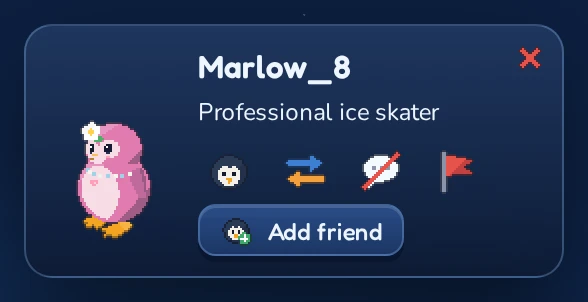
Your ignore list is kept with your account, so it still applies the next time you sign in, whichever penguin you wear. You can ignore up to 100 penguins. Moderators and admins can’t be ignored, so the button doesn’t appear on their cards.
Reporting a penguin
When someone breaks the rules, for example by spamming, harassing others or trying to scam you, report them to the inn’s staff:
- Open the penguin’s card or profile and click
 Report.
 - Under What happened?, pick what fits best: Spam, Harassment, Inappropriate, Scam or Other.
- If you like, describe what happened under Details (optional) (up to 200 characters).
- Click Send report. The button only works once you’ve picked a reason.
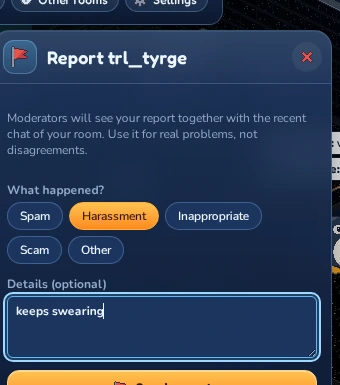
The inn thanks you: Thanks! Your report about … was sent to the staff. Moderators see your report together with the recent chat of the room you were in, so they can see for themselves what was said. That’s also why you should report while you’re still in the room where it happened.
Reporting a room
There is no separate button for rooms. If a room itself is the problem (its name, its description, or what is built in it), stand in the room, open the card of its owner and report them, and explain in Details what’s wrong with the room. The report records which room you were in.
Moderating your own rooms
In rooms you own, you’re in charge. Click a visitor to open their card: as the owner, it has a Moderate button. Click it to open the moderation menu.
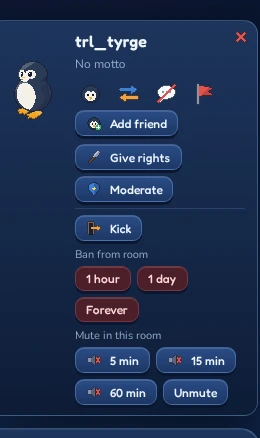
 Kick
Kick- Sends the penguin out of the room. They’re told You were kicked from the room. and can come back right away, so a kick is a friendly warning.
- Ban from room (1 hour, 1 day or Forever)
- Sends the penguin out and keeps them out for that long. If they try to come back, they’re told You are banned from that room.
- Mute in this room (
 5 min, 15 min or 60 min)
 - The penguin stays, but can’t chat in this room for that long. They see You were muted for 5 minutes in …. Click Unmute to let them talk again early.

These tools only work in your own rooms, and only on penguins who are there with you. They don’t work on moderators and admins, so the Moderate button doesn’t appear on their cards.
Lifting a room ban
Open  Room settings. Under Banned penguins you see everyone who’s banned from the room and until when. Click Unban to let someone back in early. If nobody is banned, it says Nobody is banned from this room.

If you are muted
If you try to chat while muted, the inn tells you how long it lasts: you are muted in this room until 15:04 UTC for a room mute, or you are muted until Jan 2, 15:04 UTC if the inn’s staff muted you everywhere. You can still walk around, use furni and trade. A room mute only covers chatting in that room; a mute from the staff also stops your private messages. When the mute ends, you can simply chat again.
If your account is banned
Staff can ban an account from the whole inn for breaking the rules. A banned penguin is sent back to the sign-in screen, and signing in again shows why and for how long, for example Your account is banned until Oct 13, 2026, 11:26 PM. Reason: …, or Your account is banned permanently.
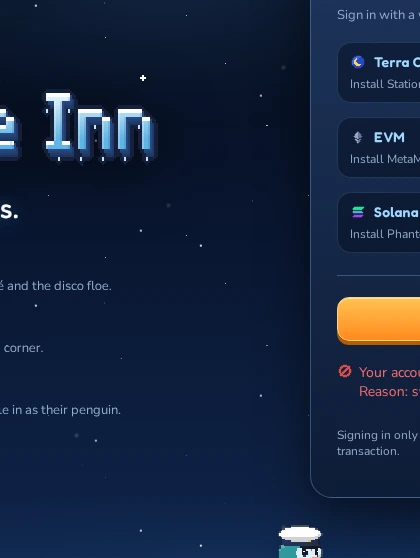
A temporary ban ends by itself: sign in again after the time shown. If you think a ban is a mistake, contact the people who run the inn.
The inn’s staff
Some penguins are moderators or admins: people who look after the inn. You can recognise them by the Mod or Admin tag next to their name on their card and profile.
Staff read reports, can look at the recent chat of a room, and can mute or ban accounts across the whole inn. They use a Mod tools button in the toolbar that ordinary penguins don’t have. Staff can’t be ignored, kicked or banned from rooms, so that they can always help.